¶ Products
Select Products in the left menu of the admin panel to open the Products screen.
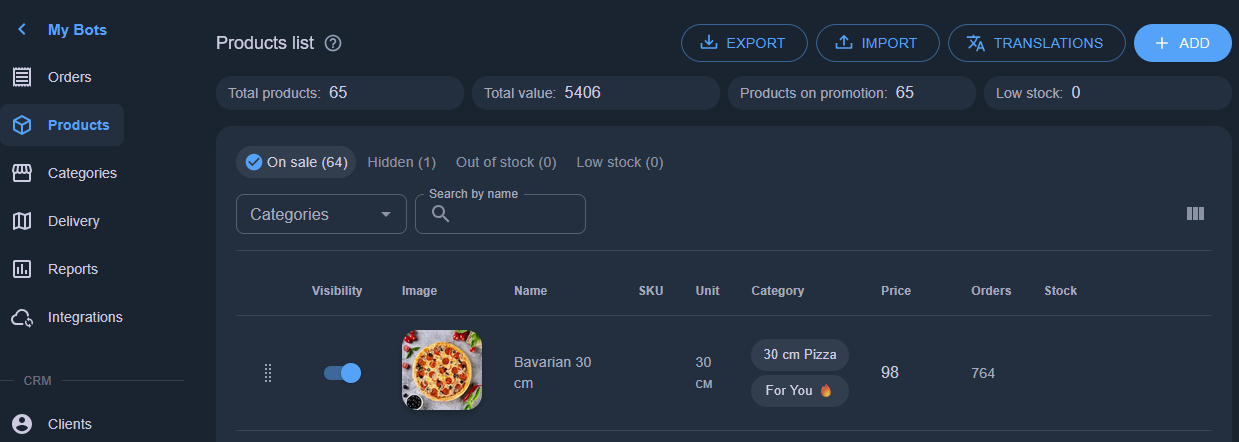
The top section shows summary information: number of products, total value, and more. Filters are located below. Not all products may fit on one page, so use the pagination controls in the bottom right corner to show 10/25/50 products per page.
¶ Filters
- On sale — products available for purchase in the bot
- Hidden — products marked as hidden and unavailable in the bot
- Out of stock — products with zero stock. They are shown in the bot but cannot be purchased
- Low stock — products with a stock of ≤ 5 units
You can additionally filter by category and product name
¶ Import / Export
You can download product list with all details in suitable format: marketplaces, store apps, our own Appexbots full format or only stocks. You could change details or stock in the file and upload it back to bulk change products of your shop.
¶ Translation of product list
If you enabled several languages you will see Translations button on the right. You can download all product text into JSON file, which contains instructions for AI models. Simply upload this file to ChatGPT/Gemini/Claude or others and say “translate”. You will get translated JSON file to upload back into Appexbots product page.
You can modify instructions in JSON, for instance ask to rewrite old translations.
¶ Sorting products
Products appear in the bot in the same order as shown on this screen.
To change the order, press and hold the 8-dot handle at the start of a row. Drag the product above or below another row.
¶ Quick photo update
Use drag-and-drop to quickly add a photo to a product right on this screen — just drag an image from your computer onto the product.
¶ Hiding / deleting a product
To quickly take a product off sale, hide it by toggling the Active status. To delete a product completely, click the delete icon. Deleted products cannot be restored.
¶ Adding / editing a product
Click a product to open its details, or click the Add button to create a new product.
¶ Photos
Upload a product photo using the button or drag-and-drop the file. Multiple photos can be uploaded.
¶ Product essentials
- Product SKU — the article number; not shown to clients in the bot
- Product name — shown in the bot
- Brand — not shown in the bot
- Country of origin — not shown in the bot
- Product description — shown on the product card in the bot
¶ Categories and tags
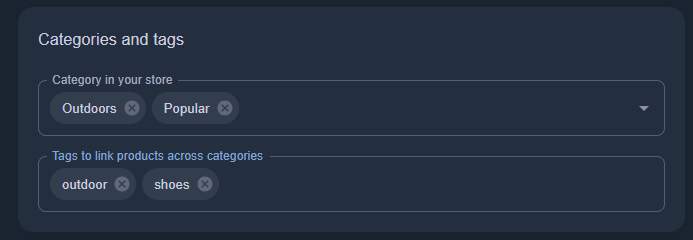
Assign at least one category to a product so that it appears in the bot. A product can belong to several categories — for example, it can appear both in "Promo" and in "Adidas".
Tags link products together for cross-selling. Products sharing tags are shown as recommendations on each other's product cards. A product can have several tags.
¶ Product card badge
Highlight a product in the bot with a badge that nudges the client towards a purchase. For example: Promo / Popular / Recommended. Pick a fitting color for the badge.
¶ Translations
If you enabled several languages for you shop, you will see Translations block. Here you could change translations for each language spesifically.
¶ Price and measurement
- Price — the product price
- Pre-discount price — displayed in the bot as a strikethrough price. Leave the field empty if you don't want to show a strikethrough price
- Volume — the size value
- Unit — measurement units: pcs, g, kg, etc.
¶ Digital products
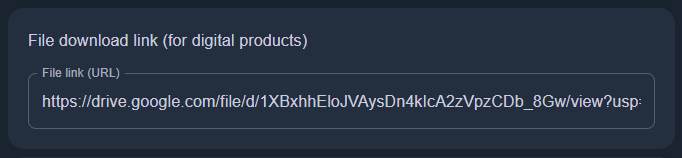
If you specify a link, the download link becomes available to the buyer once the order reaches the Completed status. Use Google Drive or Yandex Disk to host the file in the cloud.
¶ Product variants
If a product comes in several variants with the same price and SKU (for example, color or size), use Variants. Set a name for the variant list or pick an existing one, e.g. Shoe size. Then set the variant name and the stock quantity for that variant. If you don't need stock tracking, leave the field empty. Add several variants, e.g. 36, 37, 38, and reorder them if needed.
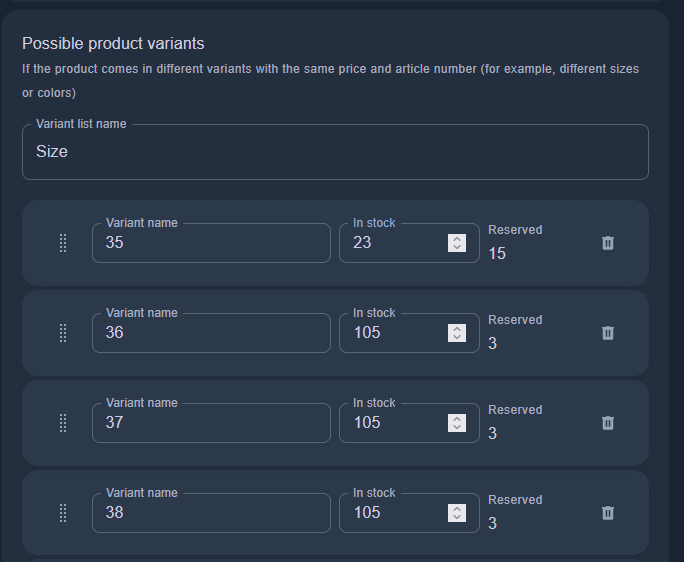
The Reserved field is calculated automatically based on active orders.
¶ Add-ons
Offer different add-ons to increase the average order value and give clients product options. Add-ons are especially useful when there are several options at different prices. For example, for a pizza we create an Add-ons list and set how many options can be selected:
0— unlimited add-on selection1— only 1 add-on can be selected from the optionsN— no more than N add-ons
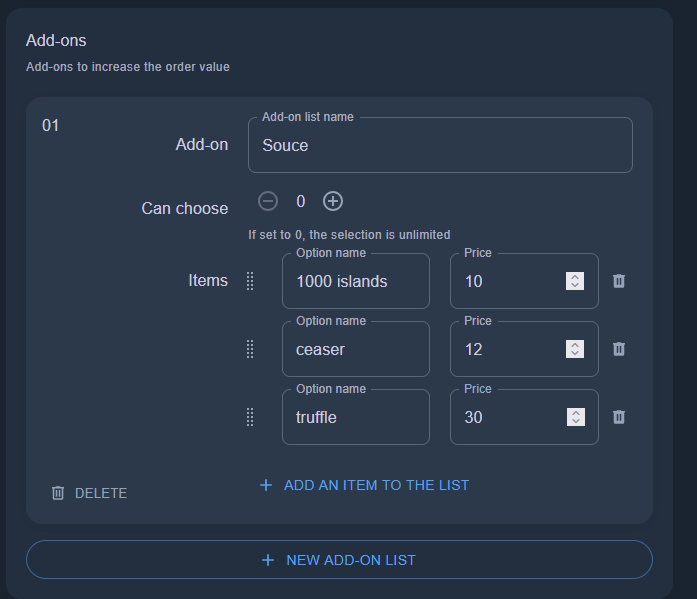
Pizza add-on items are a list of options with prices. If no price is set, the add-on doesn't increase the product price in the bot. For premium add-ons you can set a different price:
1000 islands +10ceaser +12truffle +30
A product can have several add-on lists, not only Souce.
You can also use add-ons to sell complementary products — for example, offering a screen protector and a case alongside a mobile phone. Use upselling wisely to increase sales.
¶ Delivery methods
All delivery methods are selected by default. You can disable a product for a specific delivery method.